
How to add your products
How to Add a product
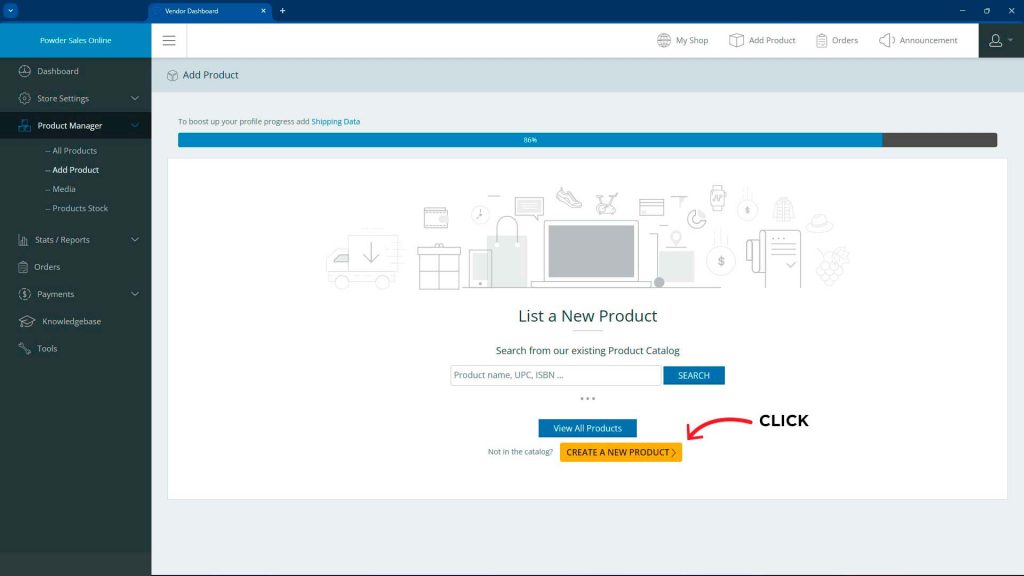
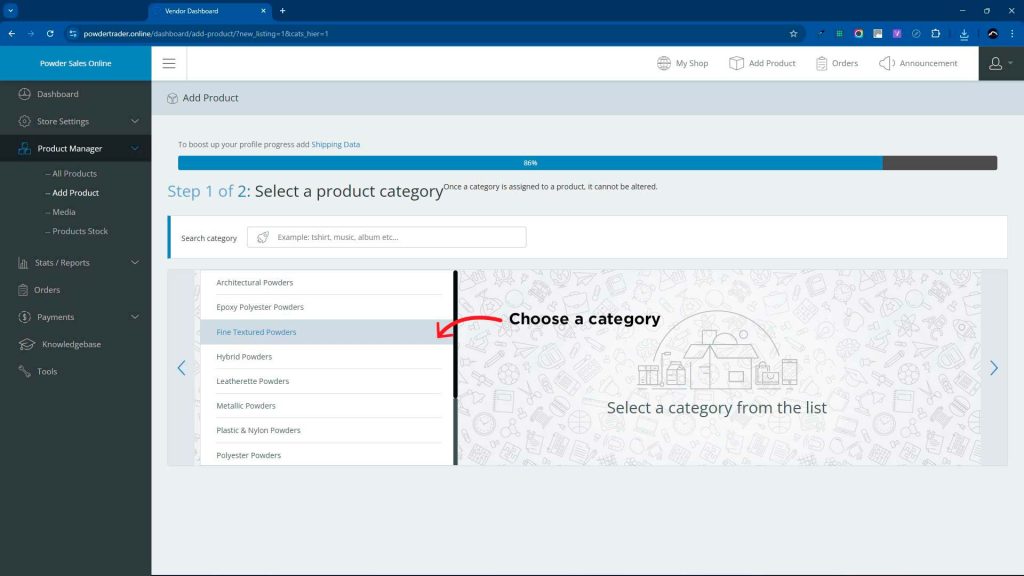
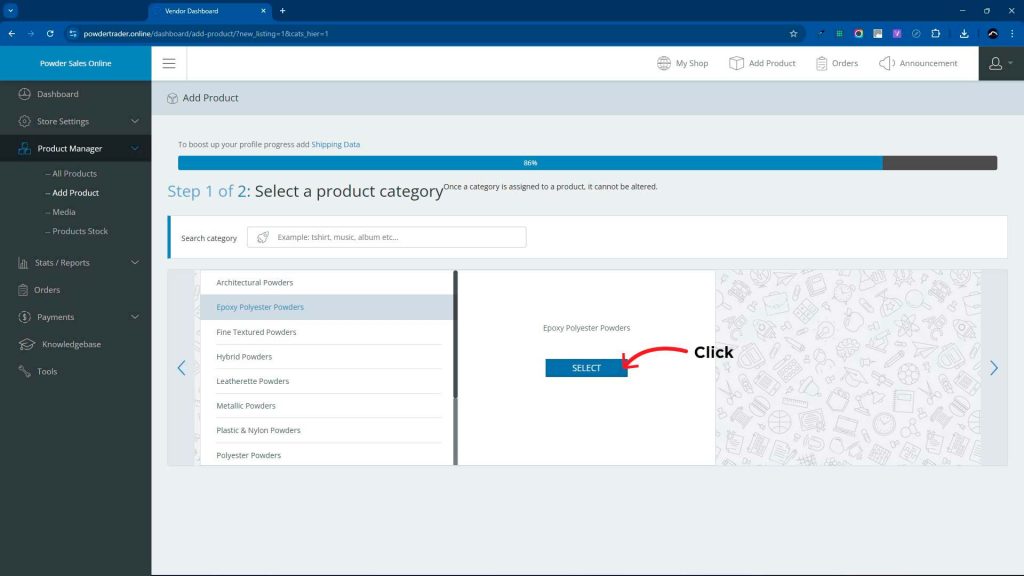
Once you have registered and logged-in, go to product Manager and click Add Product, you will see the screen Fig.1 below Click Create New Product. Then Choose a category that fits your powder (Fig.2) . Once you have chosen the category again you must click the select button (Fig.3)
The Next step is to add the product details
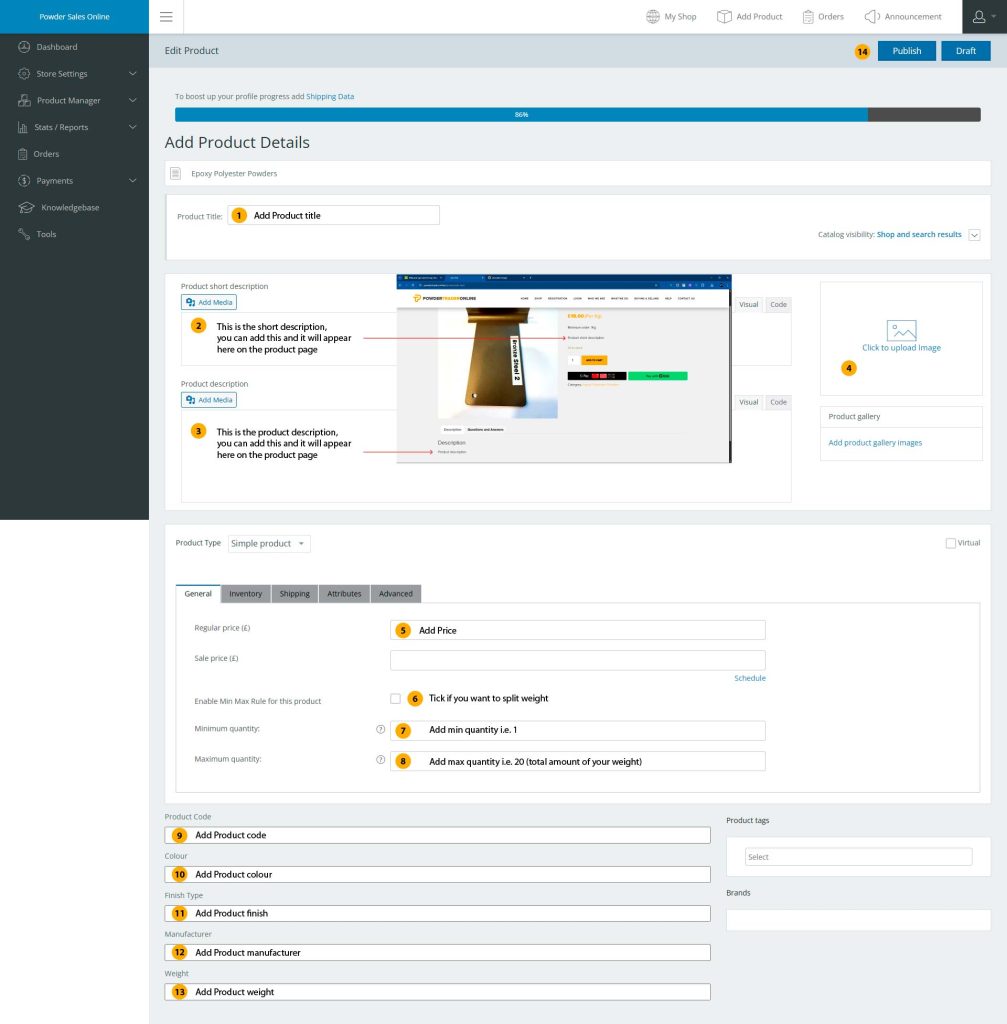
- Add Product title
- Short description (see Fig.4 for placement).
- Main Product description (see Fig.4 for placement).
- Upload an image of your finish product to help buyers choose, try to only make the image 72dpi to avoid large image uploads.
- Add your price this is dependant on if you are selling as a whole or willing to split into 1kg units (see example below).
- Tick this if you are going to split your product
- If you tick No.6 then add a minimum qty 1kg
- Again if No.6 is ticked add a maximum qty (which is the total amount of your powder).
- Add Product code.
- Add Colour.
- Add Product Finish.
- Add Manufacturer.
- Add Total Weight.
- Top right Click publish to add your product in to the store ready for sale.
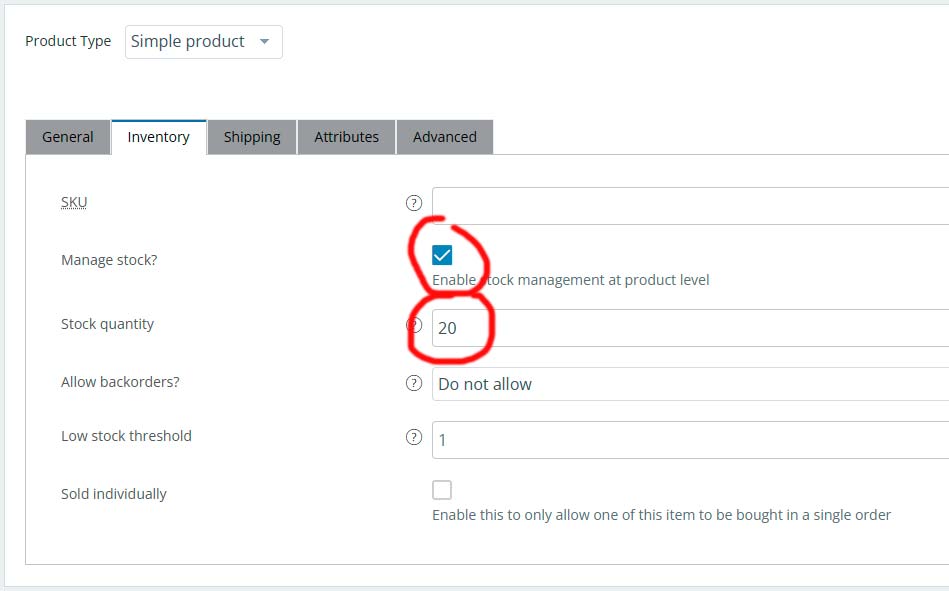
If you do click No.6 as you are willing to split make sure under Inventory you also tick Manage Stock and add stock Quantity ( this is the total amount of powder you are selling in kg’s) see Fig 5 in the below example
Example
Say you have 20kg of powder that you are willing to split and you want £200 for the whole 20kg, then you would click No.6 (Fig.4) and enter the minimum and maximum quantities being 1kg and 20 kg your price would be £10 for each kg which would equal the £200 if someone bought all 20 kg. You also need to check Manage Stock and add the amount of stock you have in the Inventory tab as this will show the buyer how much stock you have left.
What if i dont want to split my powder
If you do not want to split but want to simply sell all 20Kg in one go then you would not select N0.6 or enter a min or max product qty (Fig.4) and set your price to £200, and under Inventory tab do not select Manage Stock Quantity.
The below video will show you how to add a product as described above.
